

Tools & Skills
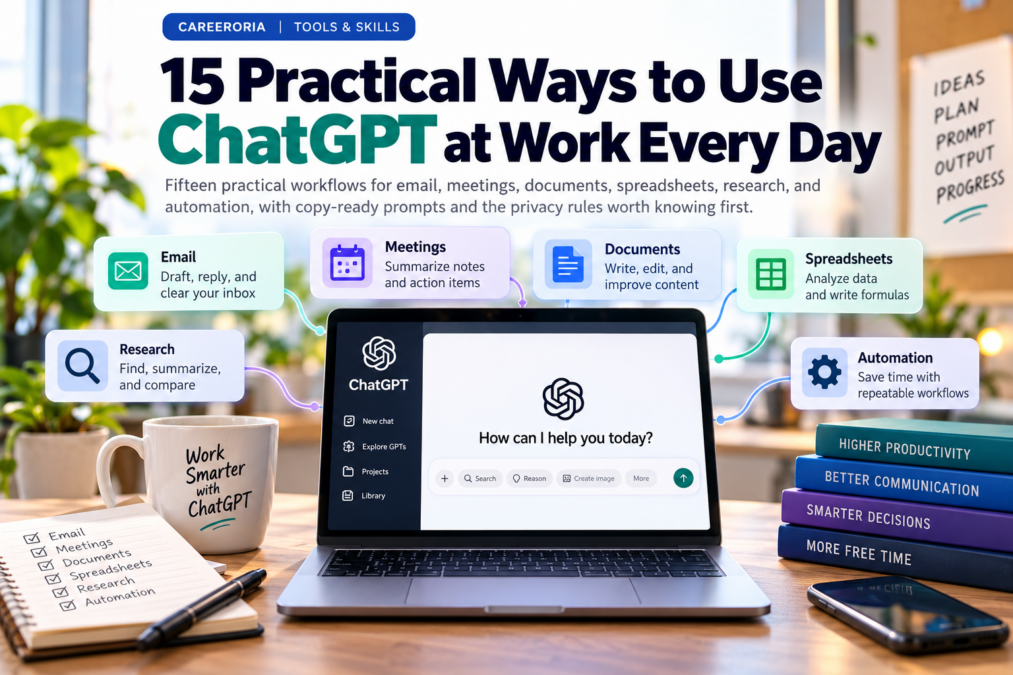
15 Practical Ways to Use ChatGPT at Work Every Day
Fifteen practical workflows for email, meetings, documents, spreadsheets, research, and automation, with copy-ready prompts and the privacy rules worth knowing first.
Most people who decide ChatGPT “isn’t that useful” tried it once, asked something vague, and got something vague back. The professionals who get real value from it use it differently. They hand it specific, repeatable pieces of their week: the inbox backlog, the meeting notes nobody wrote up, the spreadsheet formula that broke at 4 p.m.
The tool has also changed a lot this year. In the past two months alone, OpenAI added audio file uploads, a ChatGPT sidebar inside Microsoft Word, and a new default model, GPT-6, that can answer with charts, checklists, and small interactive tools instead of a wall of text. Some old advice has expired too. OpenAI has announced plans to retire custom GPTs and move people to plugins, so building your workflow around a brand-new custom GPT today is a shaky bet.
Below are 15 ways to use ChatGPT at work that hold up as of October 2026, grouped by the kind of work they take off your plate. Each one tells you what to type, which plan you need when it matters, and what to double-check before you hit send.
Before you start: ChatGPT plans at a glance
| Plan | Price (US) | Good for |
|---|---|---|
| Free | $0 | Trying the basics; ads may appear in some markets |
| Go | $8/month | More usage than Free; may include ads |
| Plus | $20/month | Most individual professionals |
| Pro | $100, $200, or $500/month | Heavy research and coding |
| Business | $25/user/month ($20 annual), 2-seat minimum | Teams handling client or employee data |
| Enterprise | Custom | Large organizations |
Prices from OpenAI’s pricing page as reported October 2026. Features roll out gradually, so check your own account.
Communication: write less, say it better
Clear your inbox in batches, not one email at a time
Answering email one message at a time is where the hours go. Instead, collect the five or six emails you’ve been avoiding and process them together. On Plus, Pro, Business, and Enterprise plans you can connect Gmail or Outlook and have ChatGPT draft and send replies from the chat on the web. If you’d rather not connect your mailbox, pasting the threads works fine.
Try this prompt
Here are 6 emails I need to answer today. For each one: summarize what the sender needs in one line, flag anything with a deadline, and draft a reply under 120 words in a warm but direct tone. Don’t promise anything I haven’t confirmed. Wherever you need information from me, write [CHECK].
Why the [CHECK] tag matters
It stops ChatGPT from inventing dates, prices, or commitments to fill a gap. Search the draft for [CHECK] before sending and you’ll catch every assumption.
Turn meeting recordings into notes and follow-ups
Since October 6, paid ChatGPT plans accept audio uploads. Attach a recording of a meeting, interview, or lecture and ask for a transcript, a summary, structured notes, or a follow-up email. OpenAI is upfront that transcripts can contain errors and accuracy varies by language, so treat the output as a strong first draft. Always get permission before recording colleagues or clients.
Try this prompt
Transcribe this recording. Then give me: (1) five bullets covering the decisions made, (2) a table of action items with owner and due date, writing “unassigned” where no owner was named, and (3) a short follow-up email to attendees. For any commitment involving money or dates, quote the speaker’s exact words.
Rewrite one message for three different audiences
A project delay reads differently to your director, your client, and the frontline team. Write the facts once, then let ChatGPT adapt the framing. This is one of the fastest wins for managers and anyone in client-facing roles.
Try this prompt
Here are the facts about our project delay: [paste]. Write three versions: a 4-sentence update for my director focused on impact and options, a client email that is honest without being alarming, and a Slack message for the team that explains what changes in their week. Keep the facts identical across all three.
Rehearse difficult conversations before you have them
Feedback conversations, salary talks, and pushback from a client go better when you’ve practiced. Ask ChatGPT to play the other person and stay in character. Voice mode makes this feel closer to the real thing, and you can ask for a critique of your answers at the end.
Try this prompt
Play a long-standing client who wants a 20% discount and is mildly frustrated with our last delivery. Push back realistically. After 6 exchanges, step out of character and tell me where I conceded too early and what I could have said instead.
Documents and data: the heavy lifting
Summarize long documents and pull out what actually matters
Upload a PDF, policy, contract, or report and ask targeted questions rather than “summarize this.” ChatGPT’s Library can also pull files from Google Drive, and from Box, Dropbox, and SharePoint on most paid plans, so you don’t have to download and re-upload. Ask for section numbers so you can verify every point in the original.
Try this prompt
Read this vendor agreement. List every clause that creates an obligation for us, with the section number, the deadline or trigger, and a one-line plain-English explanation. Then list anything unusual compared with a standard services agreement. If you are unsure about a clause, say so.
Know the limit
This speeds up first-pass review. It does not replace a lawyer, auditor, or compliance officer for anything with legal or financial consequences.
Draft and edit directly inside Microsoft Word
ChatGPT for Word arrived in September as a sidebar add-in. You can draft from rough notes, summarize the document you have open, revise selected text, and fix headings and formatting without copying anything back and forth. Install the ChatGPT add-in from Microsoft Marketplace and sign in. It works on every plan, though usage counts against your plan’s limits.
Build, fix, and explain spreadsheet formulas
The ChatGPT sidebar for Excel and Google Sheets can create trackers, write formulas, clean messy tabs, and walk you through scenario models in place. It is a particular gift for accountants and operations staff who inherit workbooks someone else built. OpenAI’s own guidance is to review outputs before relying on formulas, and that advice deserves respect.
Try this prompt
Column A has invoice dates, column B has amounts, column C has payment dates (blank if unpaid). Add a column showing days outstanding for unpaid invoices only, then a summary table bucketing unpaid totals into 0-30, 31-60, 61-90, and 90+ days. Explain each formula in one sentence.
Analyze a dataset and chart it, cleaning first
Upload a CSV or spreadsheet and ask questions in plain language. ChatGPT can now return interactive bar, line, pie, and scatter charts right in the conversation. The habit that separates good analysts from sloppy ones applies here too: profile the data before drawing conclusions.
Try this prompt
Before any analysis, list every column with its data type, count of blanks, and any duplicates or obvious errors. Wait for my go-ahead. Then show monthly revenue by region as a chart and tell me which two changes are worth investigating, with the numbers behind each.
Start presentations from a draft, not a blank slide
ChatGPT for PowerPoint can build new slides from your notes or rework an existing deck from a sidebar, and the slides stay editable. Pro, Business, and Enterprise users also have a newer Slides feature inside ChatGPT that exports to PowerPoint, PDF, or Google Slides. Either way, check every number and chart before the deck leaves your hands. OpenAI notes that advanced edits and template matching may still need a human eye.
Turn messy notes into SOPs and checklists
Administrators and team leads carry a lot of process knowledge in their heads. Dictate or paste how a task really gets done, typos and all, and let ChatGPT shape it into a standard operating procedure someone else can follow.
Try this prompt
Here are my rough notes on how we onboard a new vendor: [paste]. Turn them into an SOP with a purpose line, roles, numbered steps, the system used at each step, and a final checklist. Add a “Questions to confirm” section listing anything my notes leave ambiguous.
Organization and automation: let it run in the background
Keep recurring work inside Projects
A Project holds instructions, files, and related chats in one place, so you stop re-explaining context every Monday. Set up one per ongoing responsibility: “Monthly close,” “Q1 hiring,” “Board reporting.” You can switch a project to project-only memory, which keeps its context from leaking into other chats and vice versa. With custom GPTs on the way out, Projects are the safer home for repeatable instructions.
Schedule briefings and reminders that come to you
Scheduled tasks let ChatGPT run a prompt once or on a schedule and notify you, including monitoring tasks that only report when something changes. Free users can keep up to three active tasks, running at most once a day. Plus and Pro users can also trigger tasks from new Gmail messages, Slack channel posts, or GitHub activity.
Try this prompt
Every Monday at 7 a.m., search for news from the past week on [your industry] regulation and hiring trends. Give me the five most relevant items with one sentence on why each matters to a [your role], and link every source.
Research a prospect, topic, or decision before the meeting
ChatGPT can search the web and, on paid plans, run longer deep research reports. Use it to walk into meetings prepared. Ask for sources on every claim and open the important ones yourself. A polished answer is not the same as a correct one, and that’s doubly true for anything recent.
Try this prompt
I’m meeting the operations director of [company] on Thursday. Using sources from the past 6 months, summarize their recent news, likely priorities, and three smart questions I could ask. Cite a link for each fact and tell me which points you’re least confident about.
Hand off multistep tasks to ChatGPT Work
ChatGPT Work, launched in July, is the agent side of ChatGPT. It can research, work across connected apps and files, and produce finished documents, spreadsheets, presentations, or simple websites while you follow along. It asks for approval before consequential steps such as payments or reservations. Start with low-stakes tasks, like compiling a comparison of three software vendors into a spreadsheet, before trusting it with anything that touches clients.
Learning and development
Build training, onboarding, and study material
Educators and HR teams can turn existing material into practice. Ask for interactive flashcards or a quiz from your notes, both available on every plan, or have ChatGPT draft a role-specific onboarding plan. You can use the same trick on yourself when you’re learning a new skill for your career.
Try this prompt
Using the attached employee handbook, create a 10-question onboarding quiz for new hires. Mix multiple choice and scenario questions, include the correct answer and the handbook section for each, and avoid trick questions.
Quick picks by profession
If you only try two or three ideas from this list, start with the ones that match your role.
| Role | Start with | Watch out for |
|---|---|---|
| Accountants and bookkeepers | Formula help in Excel (7), variance explanations from uploaded exports (8), client reminder emails (1) | Client identifiers and financial data in personal accounts |
| HR professionals | Job descriptions and interview guides from manager notes (10), onboarding quizzes (15), policy FAQs (5) | Bias in wording; employee records never go into personal accounts |
| Educators | Lesson materials, quizzes, and flashcards (15), parent emails in plain language (3) | Factual errors and age-appropriateness; district rules on student data |
| Marketers | Repurposing one asset for each channel (3), research briefs (13), weekly trend briefings (12) | Unverified claims and statistics; brand voice drift |
| Administrators and EAs | Inbox batches (1), meeting notes (2), SOPs (10) | Commitments made on someone else’s behalf |
| Managers and analysts | Status rollups and audience rewrites (3), data profiling and charts (8), Projects for recurring reports (11) | Conclusions drawn before the data is checked |
Where ChatGPT still falls short
It’s worth being clear-eyed. ChatGPT can state wrong facts confidently, misread a table, or invent a source, and a slick interactive chart can be just as wrong as plain text. Transcripts miss words. Usage limits on cheaper plans can cut you off mid-task. And the product changes fast: in one quarter OpenAI announced the custom GPT retirement, replaced Library with a new Space for some accounts, and switched default models. Workflows built on prompts and files you control survive these changes better than workflows built on one feature.
Keep your work data safe
This is the section most articles skip, and it matters more than any prompt.
- Check your employer’s AI policy first. If your company provides a ChatGPT Business or Enterprise workspace, use it for work. OpenAI says it does not train on Business or Enterprise workspace data by default.
- Personal plans work differently. On Free, Plus, and Pro, conversations can be used to improve OpenAI’s models unless you turn that off in your data controls settings.
- Use Temporary Chat for one-off sensitive drafts. By default it doesn’t use or create memories and stays out of your history.
- Strip identifiers. Replace client names, account numbers, and employee details with placeholders before pasting. Never paste Social Security numbers, passwords, or patient information into any chatbot your organization hasn’t approved.
Which plan do you actually need?
For most individual professionals, Plus at $20 a month is the sensible starting point because it unlocks audio uploads, scheduled tasks beyond three, connected email, and ChatGPT Work. Free is enough to test ideas 1, 3, 4, 5, 6, and 15. Teams of two or more who handle client or employee data should look at Business, which starts at $25 per user per month billed monthly ($20 billed annually) and keeps workspace data out of model training by default. The Pro tiers ($100, $200, and $500) are built for heavy research and coding workloads, not everyday office use.
Worth comparing: ChatGPT alternatives
ChatGPT isn’t the only option. Claude (Anthropic) is popular for long documents and careful writing. Google Gemini is the natural fit if your work lives in Gmail, Docs, and Drive. Microsoft 365 Copilot is often the approved choice in companies that already license it, because it works inside Outlook, Teams, and SharePoint under existing IT controls. The paid individual tiers of ChatGPT, Claude, and Gemini cluster around $20 a month, so the deciding factors are usually where your files live and what your employer allows. Every workflow in this article transfers, with small changes, to any of them.
The skills you’re really building
The tool will keep changing. The skills underneath it won’t. Using ChatGPT well builds four abilities employers increasingly value: briefing, which is explaining a task clearly enough for someone (or something) else to do it; verification, the habit of checking outputs against sources; workflow design, spotting which parts of your job are repeatable; and data judgment, knowing what information is safe to share and where.
Research from Harvard Business School and BCG found consultants using AI finished tasks faster and with higher quality, but did worse on a task outside the AI’s strengths. Knowing where that line sits is the skill.
That last point comes from a 2023 field experiment with 758 BCG consultants. It’s the best argument for treating ChatGPT as a capable assistant you supervise, not an oracle you obey.
Put it to work with the ATG Model: Adapt. Transform. Grow.
Adapt
Pick two of these workflows and make them a daily habit this week.
Transform
Redesign one recurring task so ChatGPT handles the first draft and you handle judgment.
Grow
Name the skill you’re building, such as verification or workflow design, and add a concrete example of it to your resume or next performance review.
Your next step: pick two, run them for a week
Don’t try all fifteen. Choose one communication task (ways 1 to 4) and one document or data task (ways 5 to 10). Use them every working day for a week, and keep a simple note of how long each task took before and after. By Friday you’ll have your own evidence of what ChatGPT is worth to you, which beats any headline number.
How exposed is your role to AI?
Knowing which of your tasks AI can take over is the first step to staying ahead of it. Take Careeroria’s free AI Threat Assessment and get a clear read on where you stand.
Sources
- OpenAI Help Center: ChatGPT release notes
- OpenAI Help Center: Planned custom GPT retirement
- OpenAI Help Center: Scheduled tasks in ChatGPT
- OpenAI Help Center: Projects in ChatGPT
- OpenAI Help Center: ChatGPT for Excel and Google Sheets
- OpenAI Help Center: ChatGPT for PowerPoint
- OpenAI Help Center: Uploading files and audio
- OpenAI Help Center: ChatGPT Work and Codex
- OpenAI Help Center: Managing data and privacy in ChatGPT Business
- OpenAI Help Center: Disabling model training while keeping history
- OpenAI: Enterprise privacy
- TechCrunch: ChatGPT is getting a lot more visual (Oct 7, 2026)
- IntuitionLabs: ChatGPT plans compared (updated Oct 15, 2026)
- tl;dv: ChatGPT pricing 2026
- Dell'Acqua et al., Harvard Business School: Navigating the Jagged Technological Frontier (2023)
Features and prices checked October 27, 2026. ChatGPT changes often, so confirm details in your own account.